
PDF TRANSLATION
Translate a PDF from English to Spanish
Upload an English PDF, choose Spanish as the language to translate it to, and get the same document back in Spanish: the same pages and columns, with the Spanish set where the English was. Hand a colleague a Spanish copy of a report, read a paper in your own language, or keep both on the same page to compare. Read it in the browser beside the English, or download a bilingual copy and a Spanish-only copy. Signed in, the first 300 pages each month are free.
What it does
The page you know, in your language
Every page is rebuilt with the translation in place of the original text. Tables, formulas and captions are put back where they stood and images are left untouched, so a paper still reads like a paper. Switch between Translation, Side by side and Source at any time, and you can start on the finished pages while the rest are still translating.
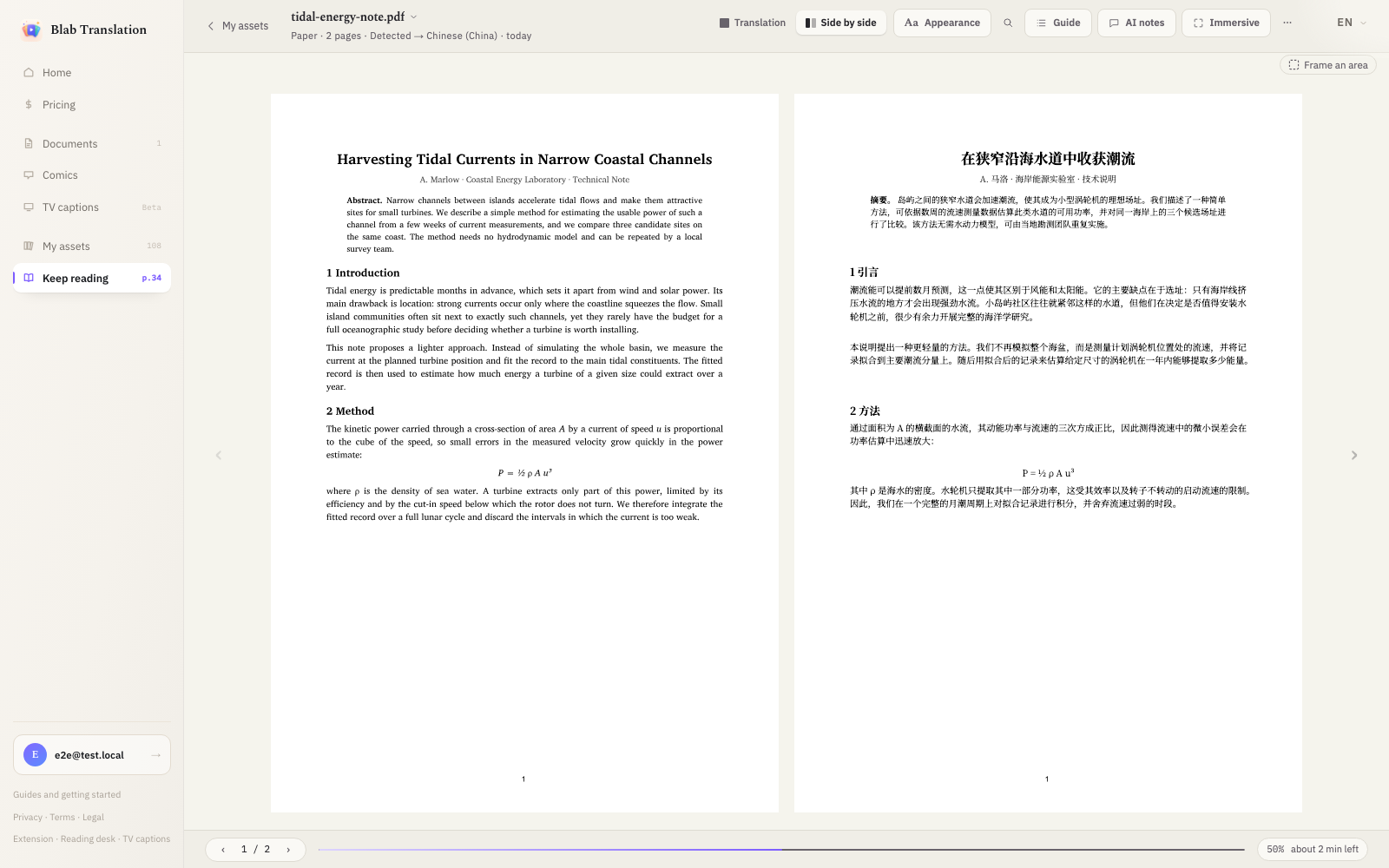
A guide before you dive in
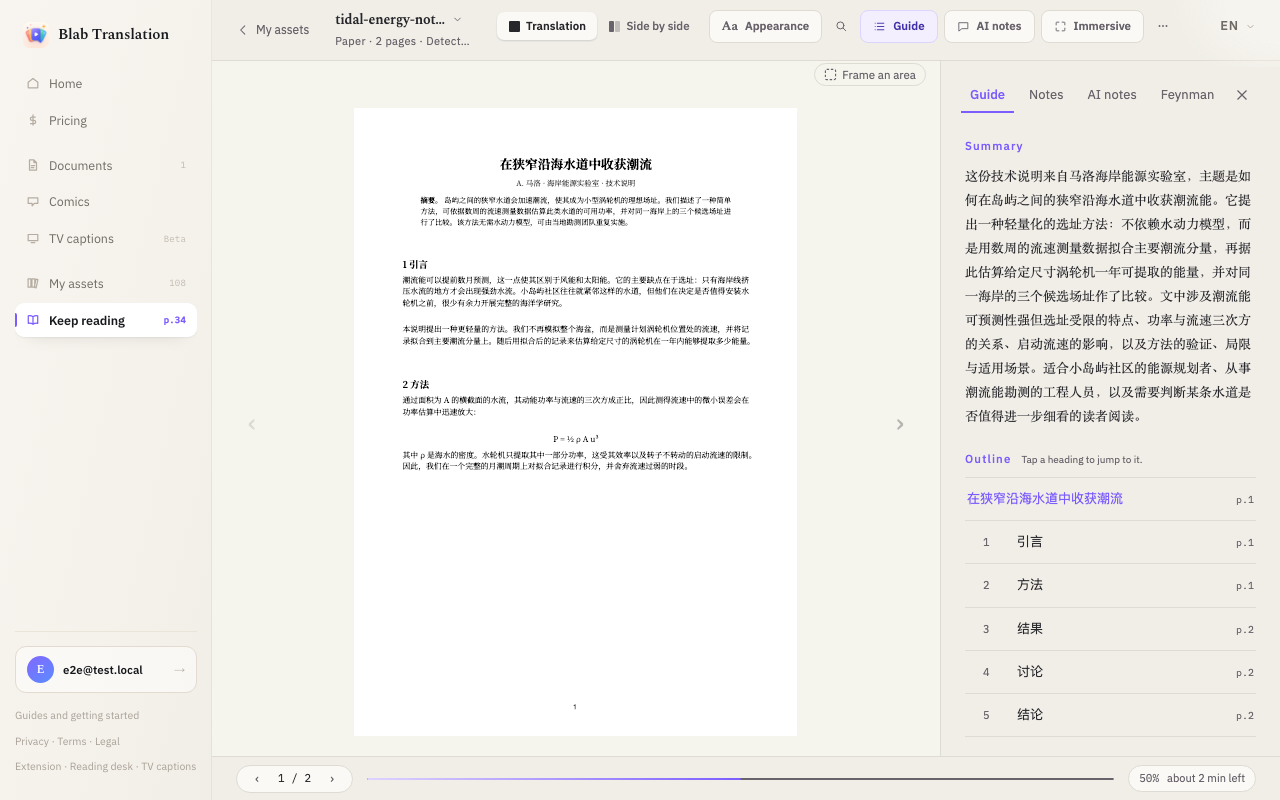
The Guide panel opens with a short summary of the whole document and an outline of its sections; tap a heading to jump there. Select any passage to save a term, ask the AI to explain it, highlight it, leave a note, correct the translation or have it translated again.
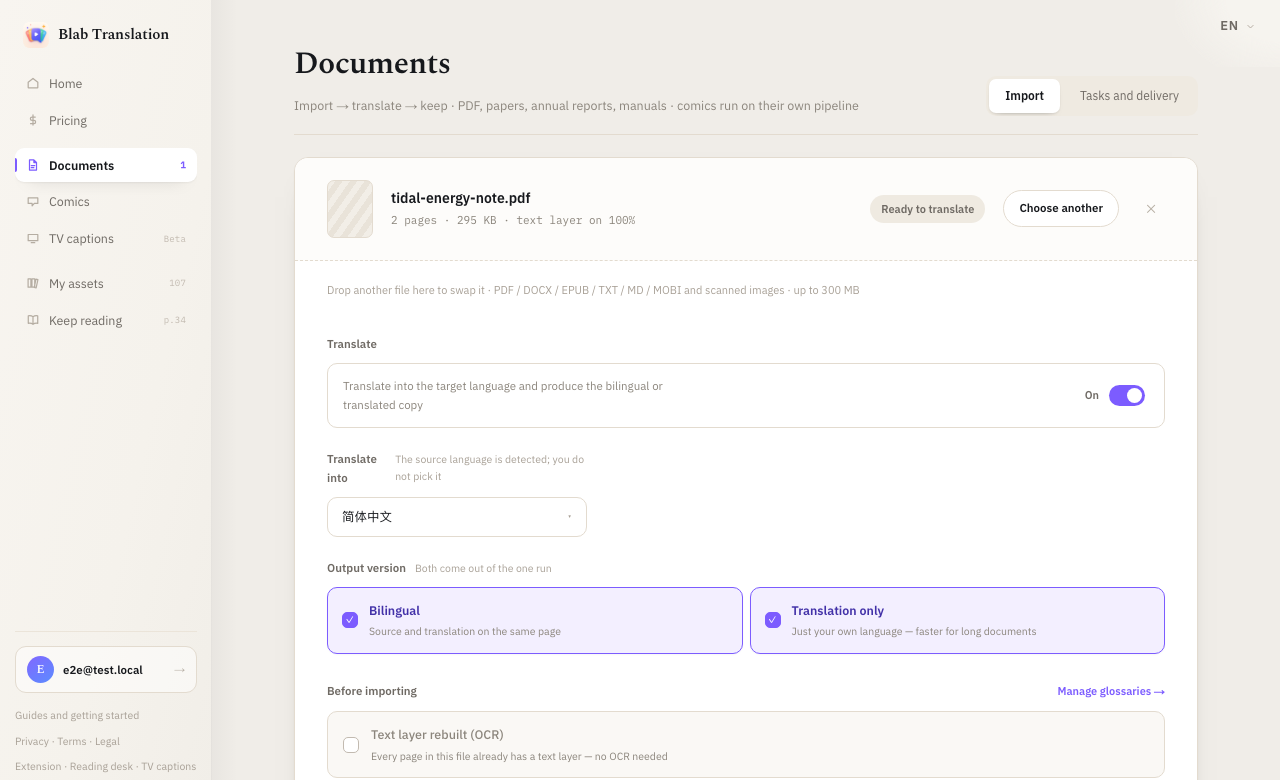
Bilingual and translation-only from one run
You choose only the language to translate into, never the source language. Tick Bilingual and one import produces both files: the bilingual copy with source and translation on the same page, and a translation-only copy that is quicker to read. Tick Translation only on its own and you get just the translation. Apply one of your glossaries before importing so names and terms come out the way you want them.
Scans, ebooks and documents too
A PDF that is mostly scanned images, with no text to read, is recognised by OCR as a whole before it is translated; a PDF with its own text layer is translated directly and nothing is recognised. Word, EPUB, TXT and Markdown files go through the same desk and come back in their own format; MOBI books are translated for reading at the desk, with no file to download. Your notes export as Markdown, and the glossary downloads as a CSV file.
How to use it
- 01
Import the file
Open Documents, drop in your PDF and choose the language to translate into, then tick the versions you want. A scan needs no extra step: it is detected and recognised first. If your balance cannot cover the job, you are told before it starts.
- 02
Read while it translates
The document opens in the reader as soon as its first pages are done. Use the Guide for the summary and outline, Side by side to check a sentence against the source, and Immersive to put the side panel and the navigation away.
- 03
Keep what you need
Download the side-by-side PDF or the translation-only PDF, export your notes, and come back to the same place within 7 days: the reader remembers where you stopped.
Limits and billing
Signed in, you get 300 free PDF pages every month. After that a page costs 3 credits. When a PDF is recognised as a scan, every one of its pages is also charged as an OCR page, at 1 credit a page; a PDF with a text layer has no OCR charge. Questions you put to the AI have their own allowance of 30 a month, then cost from 1 credit per question, more when it carries a long document. There is no engine to choose and no API key to bring.
Documents are translated on our servers, not in your browser. The uploaded file and the translated copies are deleted after 7 days. After that the document cannot be translated again from our copy: upload the file again to read it, and download the PDFs you want to keep before then.
Questions
How do I translate a PDF to Spanish?
Open Documents, drop the PDF in and choose Spanish as the target language. The language it is written in is worked out from the document, so there is nothing else to set. Tick Bilingual for a copy with English and Spanish on the same page alongside the Spanish-only copy.
Will the Spanish translation fit the original layout?
Yes. Every page is rebuilt with the Spanish set where the English text was, so the page keeps its columns. Tables, formulas and figure captions return to where they stood and images are left as they are.
Can I convert a scanned English PDF to Spanish?
Yes. A PDF made mostly of scanned images is recognised by OCR first, which reads English and other languages written in Latin letters, and is then translated, at 1 credit a page for the recognition. A PDF with its own text layer skips that step and its charge.
Can I control how names and terms come out in Spanish?
Yes. Apply one of your glossaries before you import so names and terms come out in the Spanish you use. In the reader, select a passage to correct the translation, have it translated again, or ask the AI to explain it.